Drop a folder, or click to choose images

JPEG · PNG · WebP · AVIF · HEIC · SVG · GIF · JXL · TIFF

CtrlVPaste
Web OptimizedWEBP · max 1920px

Files never uploaded · 100% client-side · I cannot see your photos · Privacy policy

Output pre-selected: JPG — drop any supported image

Free convert-to-JPG studio — any input welcome

This Studio link pre-selects JPEG / JPG so you can convert to JPG immediately. Convert to JPEG (JPG) when the world still wants a universal photo file — forms, email, print kiosks, and Windows users without extra codecs.

Bring JPEG, PNG, WebP, AVIF, HEIC, GIF, SVG, and more — input format is never blocked when you convert to JPG. Encoding uses MozJPEG.

Looking for a specific source format? Use deep links like PNG to JPG or HEIC to JPG for conversion-focused copy, or stay here when your batch is mixed and you still want to convert to JPG.

Typical convert to JPG result

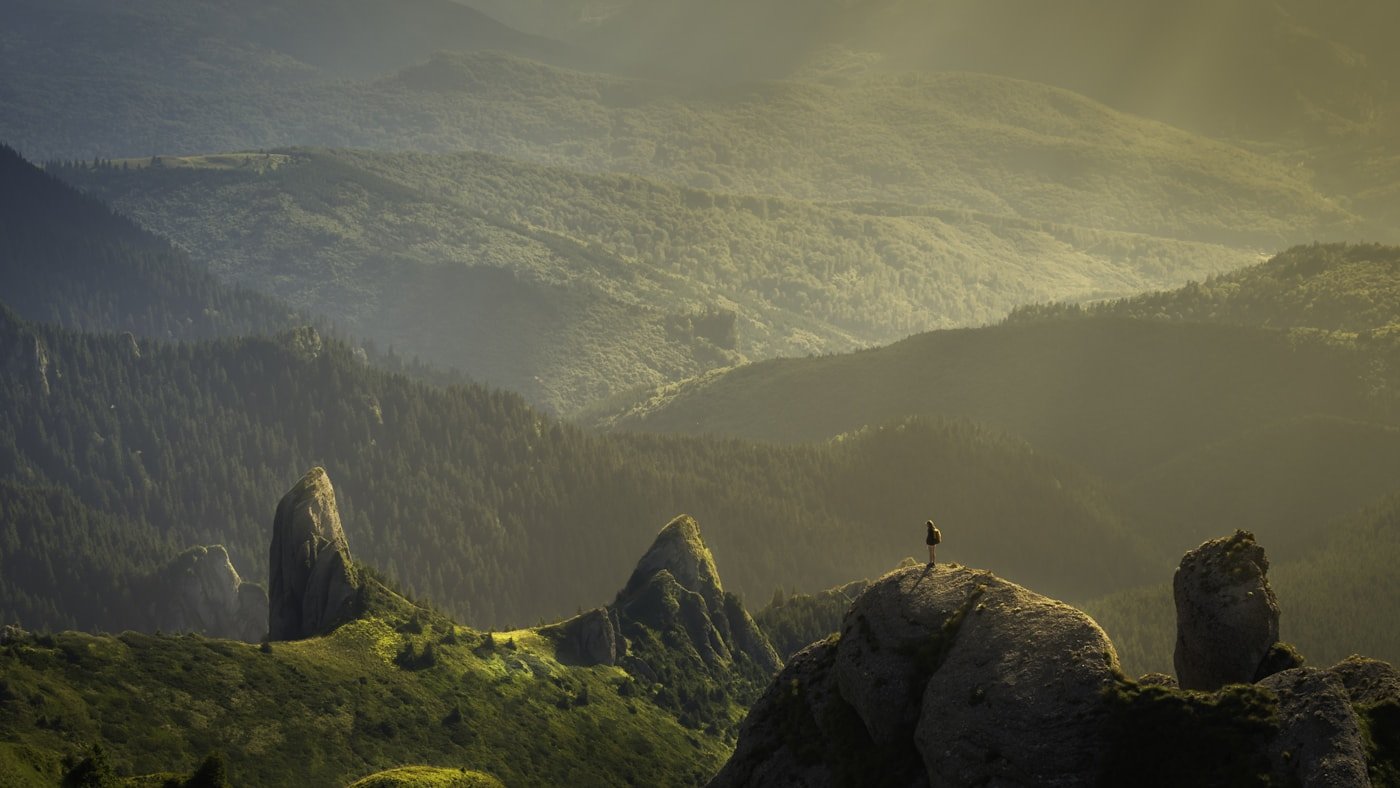
An outdoor HEIC converted to JPEG for a JPG-only upload form.

Compatible, not always smaller than HEIC

Mountain landscape photograph used as a typical photo compression sample
HEIC · 2.4 MBJPEG · 860 KB

Before · HEIC2.4 MBCamera roll

After · JPEG860 KBUniversal JPG

Illustrative convert to JPEG. MozJPEG, local, no upload.

How to use this converter

  1. Step 1

    Stay on convert to JPG

    This page already set output to JPG. You can convert to JPG from JPEG, PNG, WebP, AVIF, HEIC, GIF, TIFF, BMP, SVG, and more in one queue.

  2. Step 2

    Drop a mixed batch

    Add files or a folder. When you convert to JPG, decode and encode stay in the browser — nothing is uploaded.

  3. Step 3

    Download JPG

    Scrub quality, optionally set a size budget (JPEG, WebP, AVIF, JXL, PNG palette search), then download one file or a ZIP after you convert to JPG.

convert to JPG at a glance

convert to JPG at a glance
TopicWhat you getNote
CompatibilityBestWhy people convert to JPEG
AlphaNoneFlattened
vs WebPLarger photos usuallyWebP needs modern support
Size budgetSupportedWhen you convert to JPEG
CodecMozJPEGWASM worker

Why convert to JPG

Convert to JPEG with MozJPEG, the same family of encoder Squoosh popularized. It is still the compatibility king.

Convert to JPEG from HEIC when iPhone photos fail an upload. Convert to JPEG from PNG when a photo was saved as PNG. Convert to JPEG from WebP/AVIF when a partner cannot decode them.

JPEG has no alpha. Convert to JPEG will flatten transparency — preview edges.

Typical results when you convert to JPG

Typical results when you convert to JPG
SourceBeforeAfterNote
HEIC iPhone2.5 MB HEIC~890 KB JPEGConvert to JPEG for forms
PNG photo5.5 MB PNG~420 KB JPEGFlattened
WebP fallback280 KB WebP~340 KB JPEGCompatibility tax

How to convert to JPG in Asset Melt

Drop any supported still. MozJPEG encodes. Size budget is available when you convert to JPEG.

Progressive JPEG helps web previews. Turn it off if a picky RIP complains.

HEIC decodes via libheif before MozJPEG; GIF first frame; TIFF first page.

When you should convert to JPG

Any “JPG only” requirement.

Email and conservative CMS fields.

Skip convert to JPEG for logos that need alpha — convert to PNG or WebP.

Quality when you convert to JPG

Quality 80–90 for most convert-to-JPEG jobs. Size budget when the form has a cap. Avoid re-saving the same JPEG over and over — start from the original.

Strip GPS before public posts.

Resize for email (longest edge ~1280).

Also export WebP if the same batch will also go on a site.

Privacy when you convert to JPG

When you convert to JPG, Image processing is 100% client-side in your browser with WebAssembly. Your photos are not uploaded, I cannot see or recover them, and sampled session replay is UI-only and does not include image pixels (media is blocked). The site still sends usage analytics and crash reports — details are on the privacy page.

Convert to JPG never uploads the bitmap. GIF still uses the first frame only. TIFF uses the first page only. HEIC decodes to pixels via libheif before you convert to JPG.

Frequently asked questions

Yes. Drop JPEG, PNG, WebP, AVIF, HEIC, GIF (first frame), TIFF (first page), BMP, SVG, JPEG XL, or QOI and Asset Melt will convert to JPG locally. Mixed batches are fine.

Yes. When you convert to JPG, decoding and encoding stay on your device. Image processing is 100% client-side in your browser with WebAssembly. Your photos are not uploaded, I cannot see or recover them, and sampled session replay is UI-only and does not include image pixels (media is blocked). The site still sends usage analytics and crash reports — details are on the privacy page.

Yes. Set a target KB and Asset Melt searches for the highest JPG quality that fits when you convert to JPG.

Yes. Process the queue, then export every JPEG / JPG result as a ZIP. Optional ZIP every 25 files (Pipeline options) makes Download save numbered parts with progress on the button.

Output uses MozJPEG in a Web Worker — the same Squoosh-grade stack, with no upload.

Yes. Convert to JPEG writes .jpg files. JPG and JPEG are the same format.

No. JPEG flattens alpha. Convert to PNG or WebP if you need it.

Yes. Size budget searches quality (and optionally resize). Or use /compress/under-100kb.